Assigning a User to Groups
Once a user is added to a tenant, they are able to sign-in to the platform.
However, membership of the Everyone group for a tenant conveys very little capability on its own.
To add a user to a group
- Navigate to the User Group Management area of the Neuroverse portal
- Choose the desired group from the left hand-pane
- Ensure the central pane is set to “Membership”
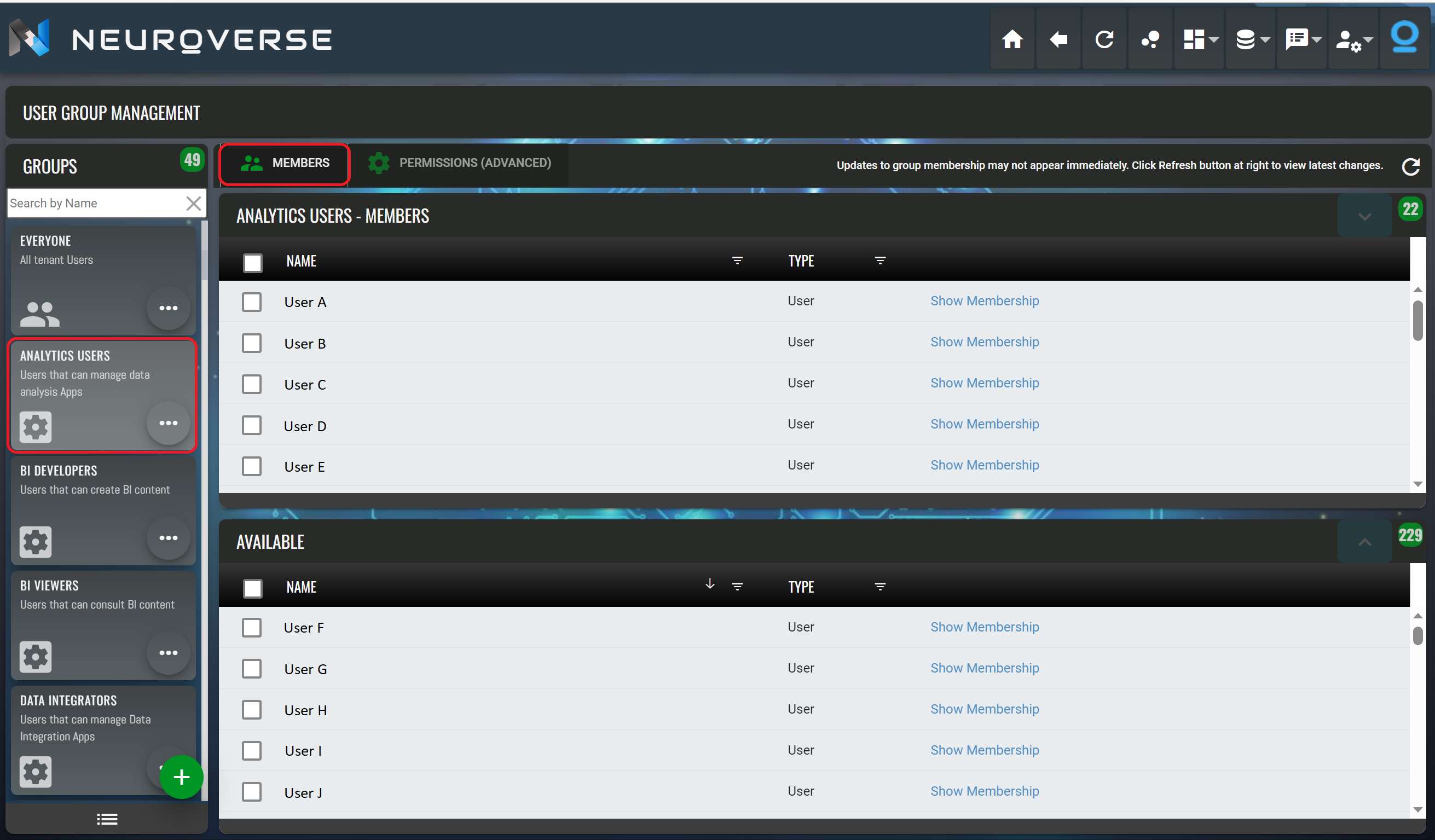
- Find the user or users to be added to the group in the Available panel at the bottom of the screen. This can be by either scrolling through the list to locate the user OR by using the filter icon that is part of the Name column of this table.

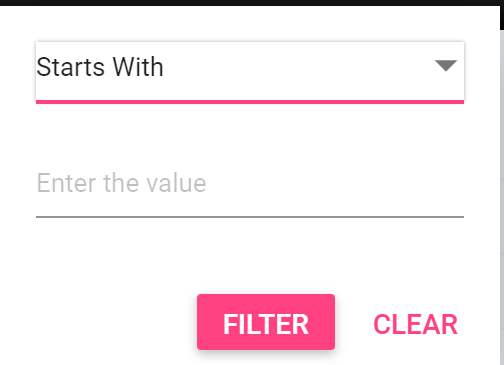
- Pressing the filter icon causes a filter form to be shown on screen that will allow you to find users based on a match condition.
- Once the desired user (or users are located), select them by clicking the check-box on the left of the user’s row in the table
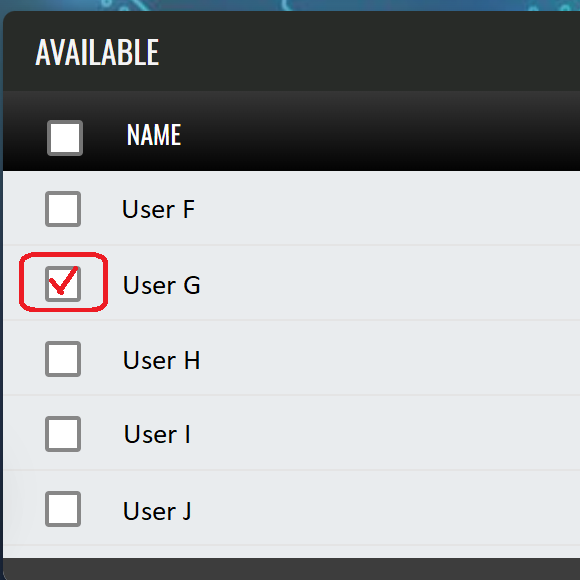
- NOTE: selecting all available users can be done quickly using the checkbox adjacent to the Name column header. This check-box is a quick way to select or de-select all available users
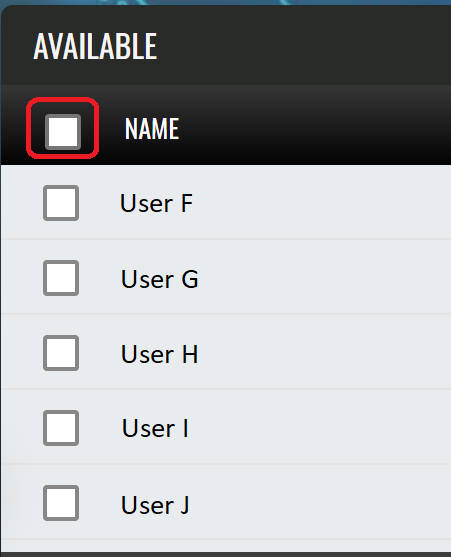
- Once the desired users are selected press the up-arrow on the right of the table to move the selected user from the “Available” table to the “Members” table

- The selected users will then be removed from the available list and appear in the members list
NOTE: Changes are saved in the underlying user directory and these can take some time to take effect.
Unassigning users
- The process of unassigning a user is the exact reverse of the process above. To unassign a user you must first locate that user (or users) in the members list, select the desired users, and press the down-arrow to move the users from the members list back to the available list.
Reviewing group membership for a user
Before changing group membership for a user you may want to review the user’s current membership.
Wherever you see the user listed, whether in the available or members lists, a link is provided for showing membership.

Clicking this link causes the memberships to be retrieved.
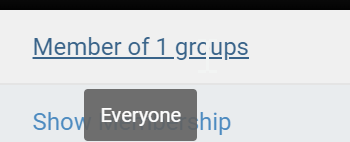
You will then see a count of memberships. Hovering over this count with the mouse causes a tooltip to appear which lists all groups the user is a member of.