Assigning Permissions
For context, a description of how the effective permissions for a user are determined is included at the following page: How user permissions are determined
There are 2 steps to managing permissions:
- Assigning Roles to Groups
- Assigning Users to Groups
Assigning Roles to Groups
A critical step then in managing permissions is the assignment of roles to groups.
This is done by:
- selecting the group in the left panel on the User Group Management screen
- selecting the “Permissions” tab in the centre panel. You will see a view such as the following:
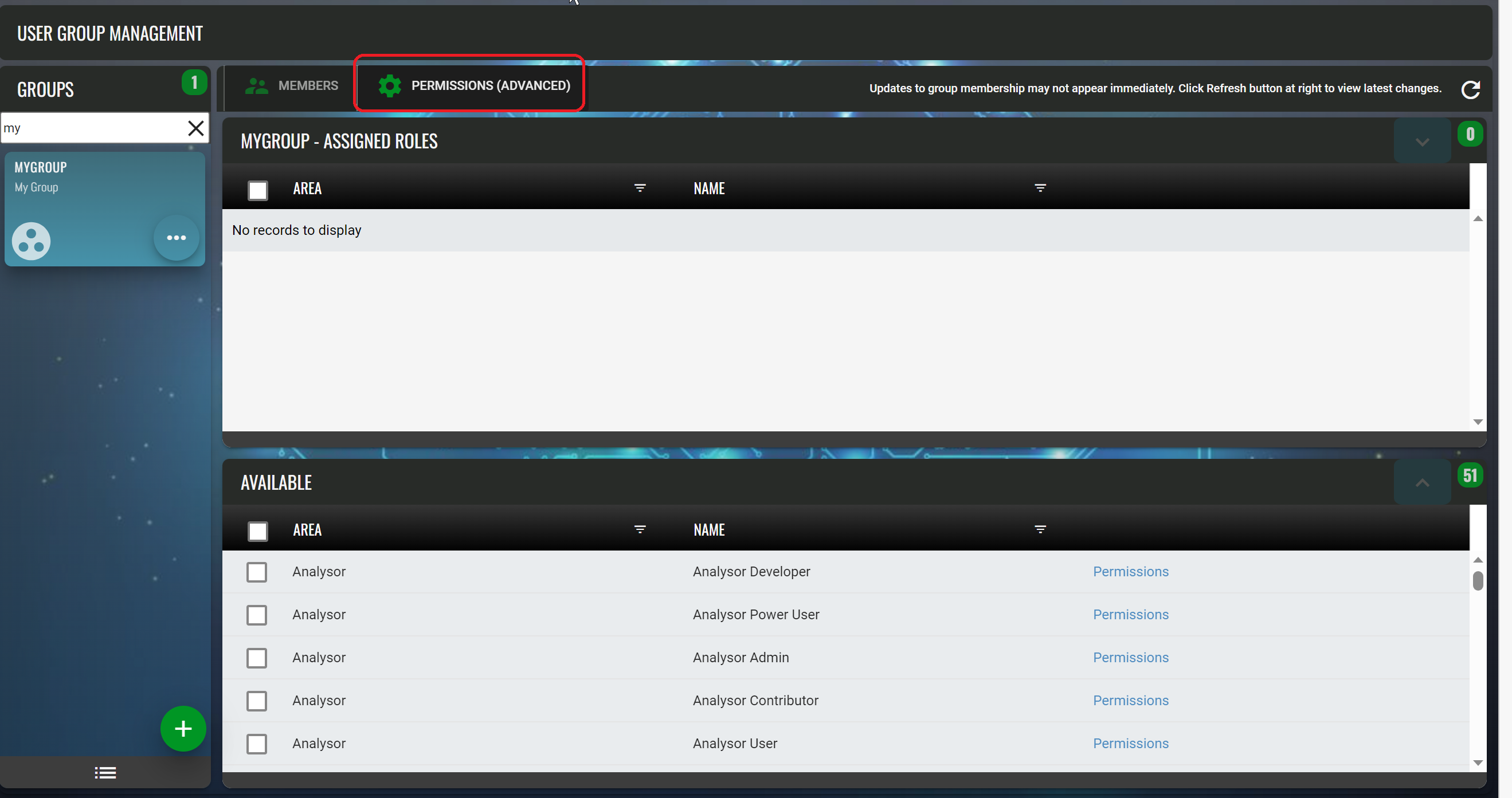
- The mechanism to assign roles to a group is very similar to the one used to assign members to a group and the same user interface behaviour applies.
- At the bottom of the screen is a list of “Available” roles that can be assigned to the group
- At the top of the screen is a list of roles already assigned to the group.
- Roles can be removed from the group and pushed back to the available list but checking the roles in the top list and pressing the down-arrow button to move them down.
- Roles can be assigned to the group by checking them in the available list and pushing them up to the group
- Please note that there is a fast mechanism to check and uncheck items in these lists by using the checkbox in the header row of each list
##Understanding the permissions associated with each role
Wherever a role is listed on screen, there is a permissions link. Hovering the mouse over this link causes a tooltip to be displayed listing the permissions associated with the role.
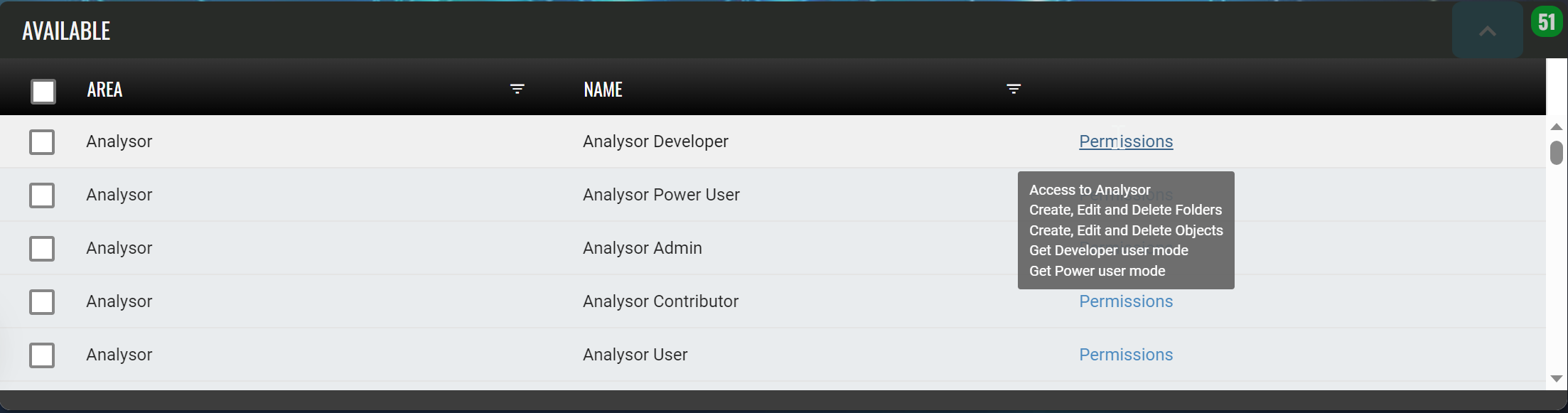
A page that looks specifically at the capabilities each role conveys is available here.
##Assigning Users to Groups
The other critical aspect of permission management involves the assignment of users to groups.
It is useful to understand the system groups and what they convey as described at the following page: System groups
Additionally, please refer to this page for information on assigning users to groups: Assigning a user to groups